How to use Command Mode
Last updated: April 16, 2026
Available on: Mac, Windows, iOS (partial — search commands work via voice triggers; text editing commands have limited functionality)
Command Mode lets you transform text with your voice — rewrite a paragraph, translate content, or search the web by speaking. Highlight text and give a command to edit it instantly, or ask a question to get answers via Perplexity.
How to enable Command Mode
Important: Command Mode requires a paid subscription (including trials) and must be enabled in Settings before use.
Open Wispr Flow and go to Settings → Experimental.
Toggle on Command Mode.
A confirmation appears once Command Mode is active.
Note: The Experimental settings page is only visible to paying users, including those on a free trial. If you don't see it, check that your subscription or trial is active in Settings → Plans & Billing.
Keyboard shortcuts
Press and hold the shortcut, speak your command, then release:
Mac:
Fn+CtrlMac (backup):
Cmd+Ctrl+Option(use this if your keyboard doesn't have an Fn key)Windows:
Ctrl+Win+Alt
To cancel Command Mode, press ESC.
Tip: You can bind a mouse button to activate Command Mode. Go to Settings → Shortcuts → Command Mode to assign a key or mouse button — up to 4 shortcuts with up to 3 keys each. Supported mouse buttons include Middle Click and Mouse 4–10.
Note: On macOS, Caps Lock cannot be used in shortcuts and common OS shortcuts (e.g., Cmd+C, Cmd+V) are reserved. The Fn key is only available as a modifier on macOS. You can reset all shortcuts to defaults via the Reset button in the shortcuts dialog.
How to use Command Mode
With highlighted text
Highlight text in any app.
Activate Command Mode using your shortcut.
Speak your command (e.g., "Make this more concise").
Release the shortcut. Flow replaces the highlighted text with the result.
Warning: The edited text replaces your highlighted selection. Select exactly what you want transformed. You can undo with Cmd+Z (Mac) or Ctrl+Z (Windows).
Without highlighted text (web search)
Activate Command Mode without selecting any text to ask questions. On desktop, Flow opens Perplexity in your browser with your query. If you have text highlighted, it is appended as context to the search query.
On iOS, voice triggers support four search destinations: Perplexity, Google, ChatGPT, and Claude. Use phrases like "search Google for…", "ask ChatGPT…", or "hey Claude…" to choose the destination.
"Press enter" voice command
Say "press enter" at the end of a dictation to have Flow automatically press the Enter key after pasting your text. The words "press enter" are removed from the output — only your dictated text is pasted, followed by an Enter keystroke. This automatically sends messages or prompts in apps where Enter submits.
Flow handles punctuation automatically, so saying "Hello world. Press enter." pastes "Hello world." and then presses Enter. The command is case-insensitive and only recognized at the end of your dictation.
If "press enter" is the only thing you say — with no other text — Flow presses the Enter key without inserting any text or punctuation. This is useful for workflows where you dictate text, pause to review it, then re-enable Flow just to say "press enter" to send the message.
Note: The first time you say "press enter," Flow shows a notification introducing the feature with a brief explanation. Tap Great to enable it, or dismiss the notification to keep "press enter" as literal text in your output. You can also enable or disable it any time in Settings → Experimental.
Text limits and behaviors
Text length: Selected text must be between 1 and 1,000 words. If your selection exceeds 1,000 words, Flow shows a notification: "Oops, too long to polish — try again with under 1000 words."
Cancel in progress: Press ESC to cancel a transformation while it's processing.
No changes needed: If the transformation produces text identical to your original, Flow shows a "Your text looks good!" notification.
During processing: Command Mode cannot be activated while a previous transcription is still being processed. Wait for it to complete first.
Non-editable fields: If Flow can't paste into the current field, your transformed text is saved to the clipboard with a notification.
Examples
Rewriting text to be more concise
You highlight: A long paragraph in an email draft.
You say: "Make this more assertive and concise"
Flow does: Replaces your selection with a shorter, punchier version.
Translating content
You highlight: A paragraph in English.
You say: "Translate to Polish"
Flow does: Replaces the selected text with a Polish translation.
Expanding an outline into prose
You highlight: A bulleted outline of key points.
You say: "Turn this outline into an essay"
Flow does: Replaces the outline with a fully written essay.
Searching the web with your voice
You do: Activate Command Mode without highlighting any text.
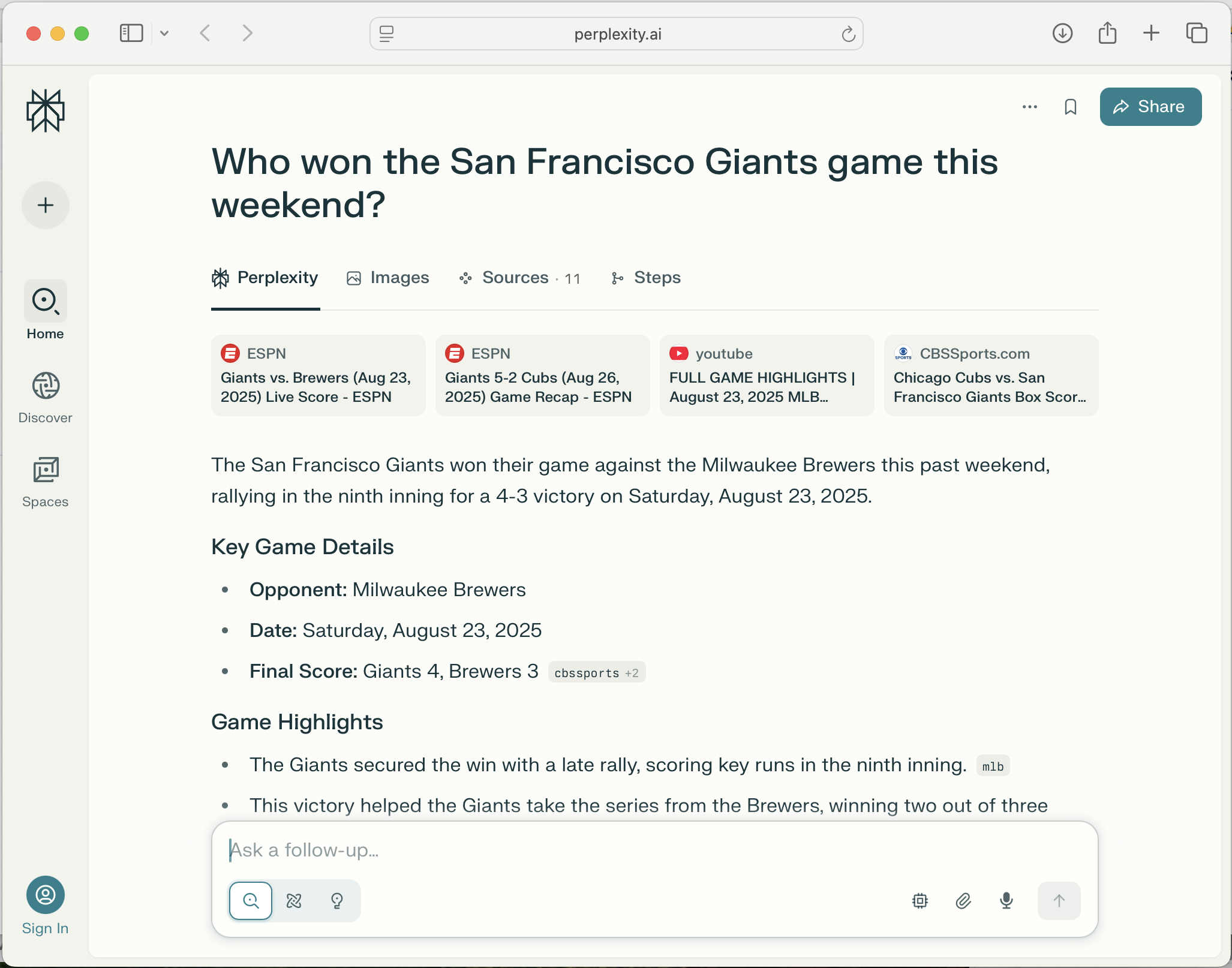
You say: "Who won the San Francisco Giants game this weekend?"
Flow does: Opens Perplexity in your browser with the search query.
FAQs
Do I need to say "Hey Flow" to use Command Mode?
No. On desktop, use the keyboard shortcut instead. If you say "Hey Flow" during regular dictation with Command Mode enabled, Flow still processes the command, but you'll see a tip suggesting you use the shortcut instead.
What happens when I try to use Command Mode while it's disabled?
A "Command mode is toggled off" notification appears with a "Go to settings" button that opens the Experimental settings page. This notification appears up to 3 times, at most once per day.
What if I see "Command Mode Servers Are Busy"?
Wait a few minutes and try again. The servers are experiencing high demand.
Can I undo a Command Mode transformation?
Yes. Press Cmd+Z (Mac) or Ctrl+Z (Windows) to restore your original text.
Can I disable the "press enter" voice command?
Yes. Go to Settings → Experimental and toggle off the "press enter" feature.
What if I don't have a paid subscription?
An "Upgrade for Command Mode" notification appears with an Upgrade button. Command Mode requires a paid subscription or active free trial.
Limitations and notes
Subscription required: Command Mode requires a paid subscription or active free trial.
iOS support is partial: Search commands work via voice triggers, but text editing commands have limited functionality on iOS.
Experimental feature: This feature may change based on feedback.
Shortcut requirements: All shortcuts (except ESC for dismiss) must include at least one modifier key (Fn, Ctrl, Cmd, Opt, Shift, Alt, or Win) or a valid mouse button.